Import a list you already have
Bring in leads from your own file and keep them alongside everything else.
Step by step
- Step 1 of 2
On Leads, click Import a list — or choose Import a list when you create a new lead list.
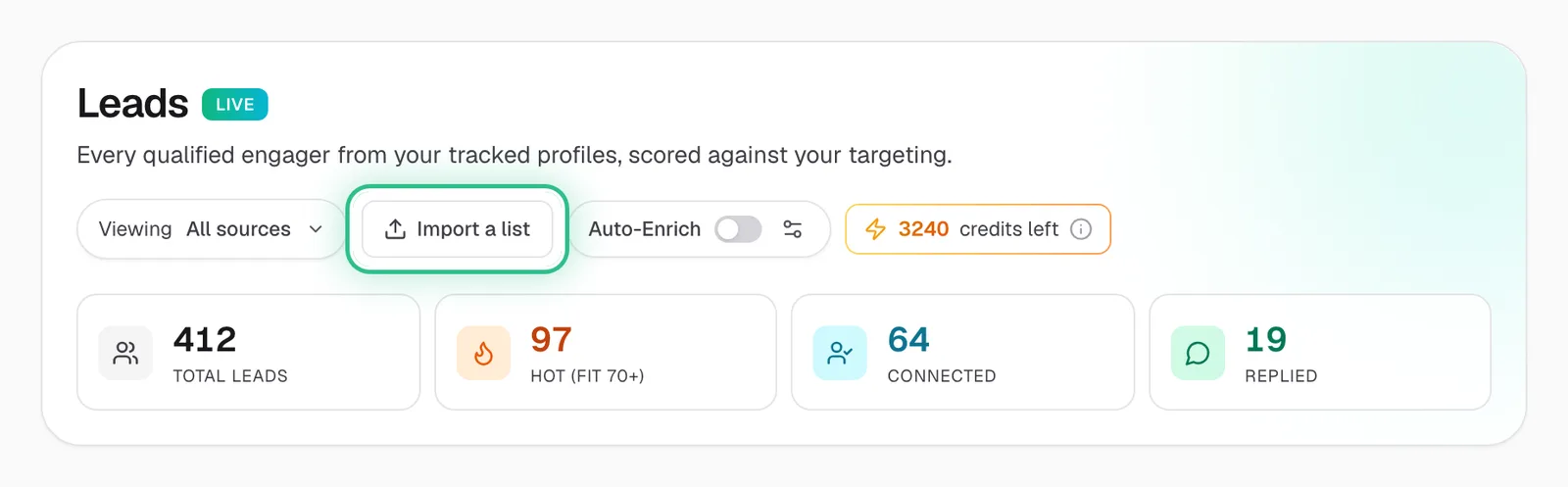
The top of the Leads page with Import a list ringed, between Viewing and Auto-Enrich - Step 2 of 2
Upload your CSV and match its columns. Importing from Lead Lists also lets you pick the list the leads go into.
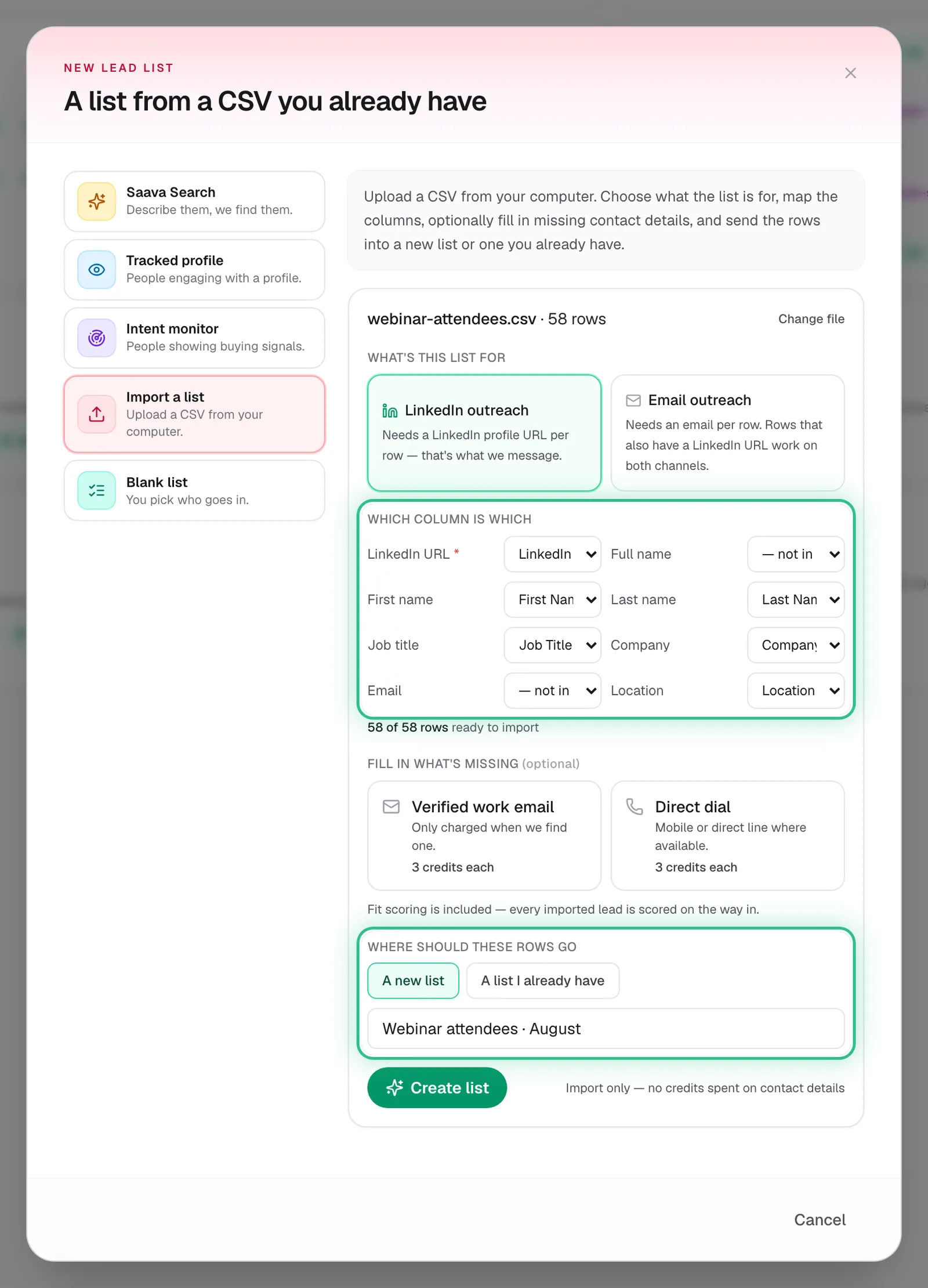
Importing a CSV into a new lead list, with the column matching and where the rows go ringed
Good to know
- Importing is free.
- An imported list works like any other: use it as a campaign's audience.
Ready to try it?
Open Leads in Saava